Adding or Removing Height and Weight
Select the applicable tab to learn about adding or removing a patient's height and weight from the Patient Folder in your province.
Basic patient observations (i.e., height, weight, lab results) are supported by the EHR. These fields can be maintained locally and transmitted to the EHR.
You have the option to enter the patient's height in feet (ft) and inches or centimeters (cm) and their weight in pounds (lbs) or kilograms (kg). When the height or weight is entered in one unit of measure, the other unit of measure is calculated automatically.
 Adding Height and Weight
To add height and weight to the patient's EHR Profile:
-
Open the Patient Folder.
-
Select the Clinical tab.
-
In the Height field, enter the patient's height.
-
In the Weight field, enter the patient's weight.
-
Select the EHR checkbox.
Both the Height and Weight fields must be populated for the EHR checkbox to be enabled.
-
A validation prompt displays. Select Yes.
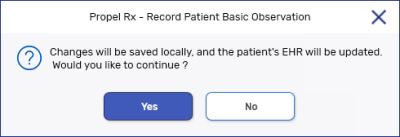
A processing message displays indicating the information is being transmitted to the EHR. When the height and weight observations have been successfully added, the processing window closes and the EHR checkbox will be selected.
-
Select Save.
Removing Height and Weight
It is possible to remove or retract height and weight sent to the EHR from Propel Rx.
To remove height and weight that were transmitted to the patient's EHR Profile:
-
Open the Patient Folder.
-
Select the Clinical tab.
-
Deselect the EHR checkbox in the Observations section. A processing message displays indicating the information is being retracted from the EHR. If the retraction was successful, the processing window closes and the EHR checkbox is deselected.
-
If desired, remove the values in the Height and/or Weight fields.
-
Select Save.
Basic patient observations (e.g., height, weight) can be entered locally, as well as transmitted to the DIS. You have the option to enter the patient's height in feet (ft) and inches or centimeters (cm) and their weight in pounds (lbs) or kilograms (kg). When the height or weight is entered in one unit of measure, the other unit of measure is calculated automatically.
Adding Height and Weight
To add observations to the patient's EHR:
-
Open the Patient Folder.
-
Select the Clinical tab.
-
In the Height field, enter the patient's height.
-
In the Weight field, enter the patient's weight.
-
Select the EHR checkbox.
Both the Height and Weight fields must be populated for the EHR checkbox to be enabled.

-
A prompt displays to confirm the action. Select Yes.
A processing message displays indicating the information is being transmitted to the DIS. When the height and weight observations have been successfully added, the processing window closes and the EHR checkbox is selected.
-
Select Save.
Removing Height and Weight
-
Open the Patient Folder.
-
Select the Clinical tab.
-
In the Observations section, deselect the EHR checkbox to remove the flag.
-
A processing message displays indicating the information is being retracted from the EHR. Once the retraction is successful, processing window closes, and the EHR checkbox no longer displays a checkmark.
-
The height and weight values are retained locally. If the height and weight need to be resent to the DIS in the future, the EHR checkbox can be selected again.
-
-
Select Save.
You have the option to enter the patient's height in feet (ft) and inches or centimeters (cm) and their weight in pounds (lbs) or kilograms (kg). When the height or weight is entered in one unit of measure, the other unit of measure is calculated automatically.
Adding Height and Weight
To add height and weight to the Patient Folder:
-
Open the Patient Folder.
-
Select the Clinical tab.
-
In the Height field, enter the patient's height.
-
In the Weight field, enter the patient's weight.
-
Select Save.
Removing Height and Weight
-
Open the Patient Folder.
-
Select the Clinical tab.
-
Remove the values in the Height and/or Weight fields.
-
Select Save.